Control how clients change their pet information
To make changes to pet information, clients can use the Vello client portal or make a phone call.
Note: For Cornerstone customers, you can only do the steps given in this documentation after a practice manager:
- Makes sure that your practice has Cornerstone version 9.6 or higher
- Activates Auto assign for Client ID in Cornerstone
- Activates Auto assign for Patient ID in Cornerstone
For more information, refer to the applicable Cornerstone documentation:
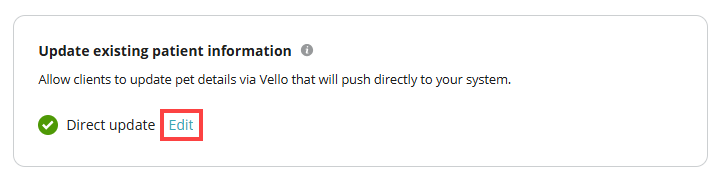
To control how clients make changes to their pet's information, select Edit in the Update existing patient information section of the Vello Client Permissions screen:
This table gives each setting and its function:
| Setting | Function |
|---|---|
| Direct update | If you select Direct update, clients can use the client portal to change this information for their pet:
|
| Call to update | If you select Call to update, clients must call your practice directly to change their pet's information. As a result, practice staff must manually make changes to the patient record in your PIMS. |
What clients can do in the client portal
If you select Direct update in the Update existing patient information section, clients can:
- Select Update in the Pet Information screen
- Enter their pet information changes in the Update Pet Details screen
- Select Update Pet Details
As a result, Vello:
- Shows the changes immediately in the Vello client portal
- Syncs the change to the applicable patient record in your PIMS
- Shows a Patient update entry in the Notifications tab of the Requests & Notifications screen
If you select Call to update and a client selects Update in the Pet Information screen, the client portal tells them to contact your practice.
Monitor client changes to pet information
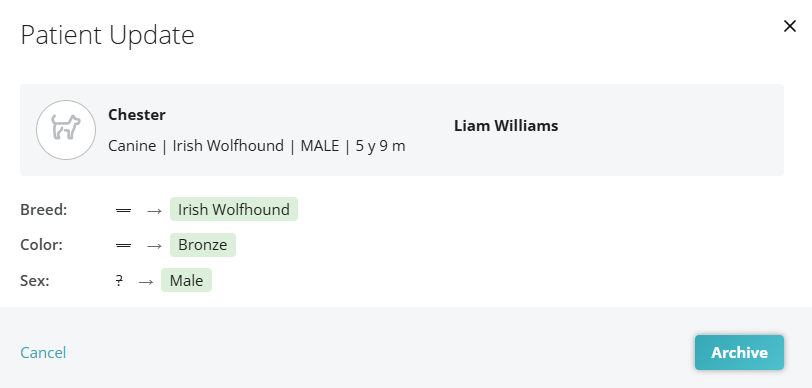
To monitor changes that a client makes to pet information in the client portal, select the Patient update entry in the Notifications tab. As a result, Vello shows the previous information for the pet, and the changes that the client made to the information in the client portal: