
Mass Communications: Campaign reports
After you send a Mass Communications email, Vello makes a campaign report that gives easy visual access to data about the email message.
A campaign report uses data from a sent Mass Communications email. A campaign report makes it easier for your practice to:
- Measure the marketing performance of different emails that you sent
- Compare data of specified periods and measure improvements
The metrics that a campaign report shows includes the number of times that clients:
- Received an email or not
- Identified an email as spam
- Opened an email
- Selected one or more links in an email
- Unsubscribed from an email
To get access to campaign reports for your practice, select View all reports in the Mass Communications screen:

After you send a Mass Communications email, Vello automatically syncs data to a campaign report at intervals of 30 minutes during the next seven days.
Campaign report filters
A campaign report has filters that you can use to show different data:
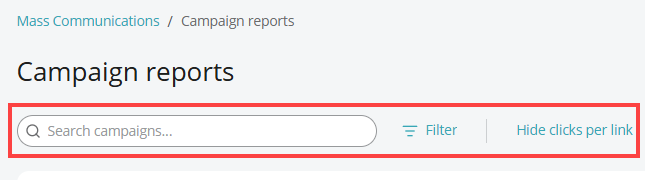
This table gives each filter and its function:
This table gives each filter and its function:
| Filter | Function |
|---|---|
| Search campaigns... | Enter the name of a Mass Communications email in the Search campaigns... box to get access to the applicable data for the email. |
| Date Range | After you select Filter, use Date Range to get access to the applicable reports of a specified period. The available periods are:
|
| Exclude legacy reports (no data available) | After you select Filter, use Exclude legacy reports (no data available) to hide emails that you sent before campaign reports were available in Vello. Note: Campaign reports became available to all customers as a Vello feature from May 18, 2026. |
| Hide clicks per link | Use Hide clicks per link to hide the metrics and data related to links that clients can select in an email. |
Campaign report metrics
You can get access to different metrics in a Mass Communications campaign report:
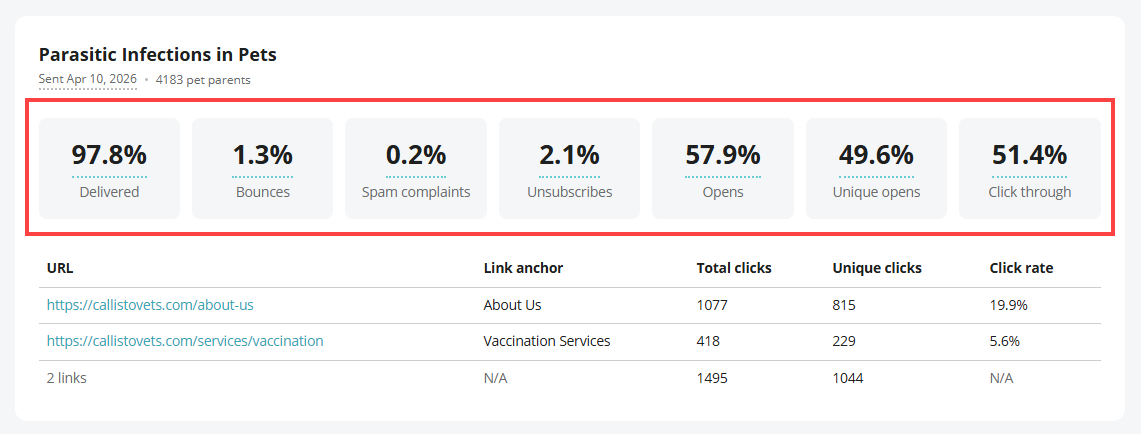
This table gives each metric and more information about it:
This table gives each metric and more information about it:
| Metric | Information |
|---|---|
| Delivered | The Delivered metric identifies the number of emails that clients received correctly as a percentage of the total number of emails that Vello sent. |
| Bounce rate | The Bounce rate metric identifies the number of emails that clients did not receive correctly as a percentage of the total number of emails that Vello sent (for example, if Vello tried to send an email to an email address that does not operate correctly). |
| Spam complaint rate | The Spam complaint rate metric shows the number of clients that identified the email that they received as spam. The number shown is a percentage of the total number of emails that Vello sent. |
| Unsubscribe rate | The Unsubscribe rate metric shows the number of clients that unsubscribed from the email. The number shown is a percentage of the total number of emails that Vello sent. |
| Opens | The Opens metric shows the number of times that clients opened the email. The number shown is a percentage of the total number of emails that Vello sent. Note: The Opens metric can show a percentage of more than 100 because of email preview settings. |
| Unique open rate | The Unique open rate metric shows the number of times that different clients opened the email for the first time. The number shown is a percentage of the total number of emails that Vello sent. |
| Click through | The Click through metric shows the number of times that clients selected links in the email that they opened. The number shown is a percentage of the Opens metric. |
A Mass Communications email can include one or more links. A campaign report for the email includes metrics for the links:
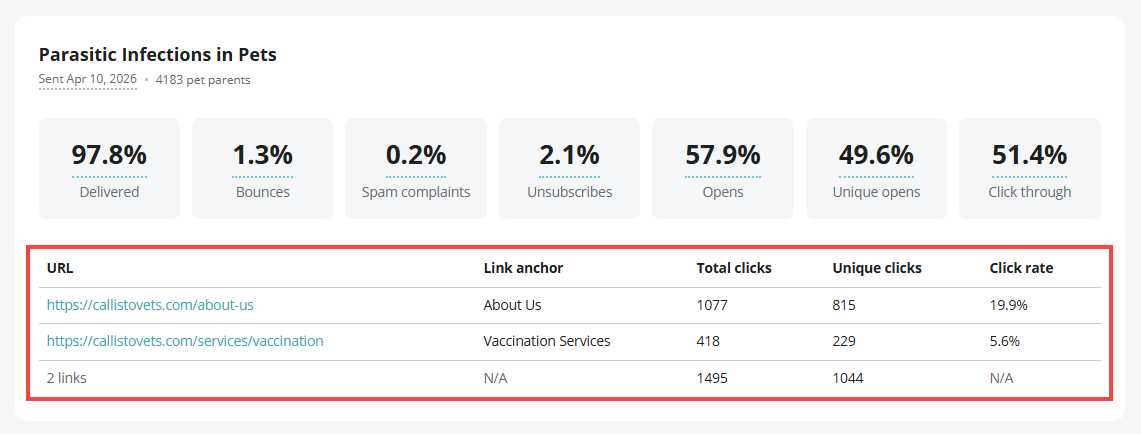
This table gives each metric for an email link and information about it:
This table gives each metric for an email link and information about it:
| Metric | Information |
|---|---|
| Total clicks | The Total clicks metric shows the number of times that a client selected a link in the email. If one client selected a link more than one time, the metric includes this data. |
| Unique clicks | The Unique clicks metric shows the number of times that different clients selected a link for the first time. |
| Click rate | The Click rate metric shows the number of times that a client received the email correctly and selected a link in the email. |